
CapeSoft File Explorer
Documentation
Latest Version


| CapeSoft Support | |
|---|---|
 |
|
| Telephone | +27 87 828 0123 |
| Fax | +27 21 715 2535 |
| Post | PO Box 511, Plumstead, 7801, Cape Town, South Africa |
| CapeSoft Sales | |
|---|---|
| Web | www.capesoft.com |
 |
|
| Telephone | +27 87 828 0123 |
| Fax | +27 21 715 2535 |
| Post | PO Box 511, Plumstead, 7801, Cape Town, South Africa |
| Buy Online | |
|---|---|
| Web |  www.clarionshop.com www.clarionshop.com |
| Microsoft Internet Explorer (5.5 or later) |  |
| Adobe Acrobat Reader (4 or later) |
 |
| Windows Media Player (6.4 or later) |
 |
| Adobe Flash Player |  |
| DLLs required (Standalone mode compiles) | |
|---|---|
| Clarion Version | DLL required |
| Clarion 6.1 | C60FEX.DLL and PWUTIL.DLL |
| Clarion 5.5 | C55FEX.DLL and PWUTIL.DLL |
| DLLs required (Local mode compiles) | |
|---|---|
| Clarion Version | DDLL required |
| Clarion 6.1 | PWUTIL.DLL |
| Clarion 5.5 | PPWUTIL.DLL |
| Activate File Explorer | |
|---|---|
| Summary | Global Extension Template Activate CapeSoft File Explorer Features in your application Required |
| What does it do? | You must add this template to your app or no other templates / objects will work. This template sets up the File Explorer classes (dll / lib) so that other templates can implement those classes. |
| Prerequisites | None |
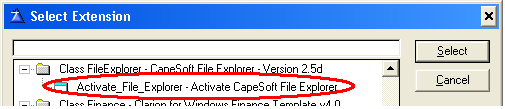
| How do I implement it? | 1. Open your app 2. Select "Global Properties" from the "Application" menu 3. Click the "Extensions" button 4. Click the "Insert" button Select "Activate_File_Explorer" ( found under "Class File Explorer" ) 5. Click the "Select" button ( you can leave all default settings, these are discussed below ) 6. Click "OK" 7. Click "OK" again |
| What are my options? | Folder for temp files File Explorer may need to generate temporary files while your app runs. If it does, by default it uses the same folder as your exe. You can change this here to be either the same folder as the exe (default), or the system temporary folder ( normally "c:\windows\temp" or similar ). Do not generate any code No template code will be generated at compile time, however any controls which you have populated will still appear. Do not automatically generate map Does not add anything to your global map at compile time. Do not automatically call feDispose By default, File Explorer will generate a line of code which calls the feDispose function as your application closes. If for some reason you do not want this function to be called, you can tick this option here. If you're not sure, don't tick this. |
| Document Viewer | |
|---|---|
| Summary | Control Template View Html, PDF, and SWF files Optional |
| What does it do? | Populate this control onto a window in order to be able to view and / or edit HTML, PDF, or SWF files in it. |
| Prerequisites | You need to have added the Active_File_Explorer global extension template to your application. |
| How do I implement it? |
|
| What are my options? | "General" Tab Object Type This control used to be able to load more than one file type. As the functionality evolved we had to break it up to support only one file type per control. Choose the File Type here. "Common" Tab Initial Document If you want this control to load a file as the window opens, enter the file name here. Tick "Variable?" if you want to enter a variable instead of a filename. Provide 'All Files' Option in File Lookups If the user uses the template's 'File Lookup' button to find files (much like the DOS File Lookup Clarion control), enabling this option will result in the lookup including 'All Files' as a supported file type. "Browse Html" Tab - only available if you choose Html Browsing on the first tab Auto-Resize control Have the Viewer control automatically resize when the window resizes, selected by default. Implement Callback Events Callback events are handled "internally" by File Explorer, which calls a virtual method called EventCallback each time an event is fired. If you want to enable Callback events, simply tick this option here. (Note: Enabling Callback events will add some overhead to the object, so theoretically it will slow it down, however the speed difference should not be noticeable). "Edit Html" Tab - only available if you choose Html Editing on the first tab Auto-Resize control Have the Viewer control automatically resize when the window resizes, selected by default. Implement Callback Events Callback events are handled "internally" by File Explorer, which calls a virtual method called EventCallback each time an event is fired. If you want to enable Callback events, simply tick this option here. (Note: Enabling Callback events will add some overhead to the object, so theoretically it will slow it down, however the speed difference should not be noticeable). "PDF" Tab - only available if you choose PDF on the first tab Show Toolbar Decides whether or not the native PDF toolbar is displayed when you view documents. Show Scrollbars Decides whether or not scrollbars are displayed when you view documents. Initial Zoom Sets the initial zoom percentage for the object. Preferred Acrobat Version Because it is possible to have more than one version of Adobe Acrobat installed on your PC, and because some methods only work with Acrobat 4 ( as described in the methods and properties sections of this document ), we enable you to specify which version of Adobe Acrobat should be loaded. If the version you choose here is not installed on the PC, any available version will be loaded. "Flash" Tab - only available if you choose Flashon the first tab Loop Files Plays the file repeatedly if enabled "Object" Tab Object Name Each Viewer Control instantiates a File Explorer object (from the File Explorer class), which it uses to "work". These File Explorer objects need names. The templates will automatically name the objects for you (typically something like ThisViewer1, ThisViewer2 etc), but you can rename the object here if you have reason to. Var to Disable Optionally create a variable (Byte) which can be set at runtime, which will disable this object if set to 1 (True), and enable it if set to 0 (False). You can point all objects in your app to a single override variable allowing a single 'switch' for the user to disable all controls, or use multiple variables allowing the user 'switches' to disable specific controls or groups of controls at run-time. Don't Generate Any Code No code will be generated for this particular object at compile time. |
| Media Viewer | |
|---|---|
| Summary | Control Template Play sound and video files Optional |
| What does it do? | Populate this control onto a window in order to be able to play sound and video files |
| Prerequisites | You need to have added the Active_File_Explorer global extension template to your application. |
| How do I implement it? |
|
| What are my options? | "General" Tab ( no options ) "Common" Tab ( File Types ) The top two sections of this tab allow you to choose which file types this control will be allowed to play. Provide 'All Files' Option in File Lookups If the user uses the template's 'File Lookup' button to find files (much like the DOS File Lookup Clarion control), enabling this option will result in the lookup including 'All Files' as a supported file type. Initial Document If you want this control to load a file as the window opens, enter the file name here. Tick "Variable?" if you want to enter a variable instead of a filename. "Advanced" Tab Auto-Resize control Have the Viewer control automatically resize when the window resizes, selected by default. Implement Callback Events Callback events are handled "internally" by File Explorer, which calls a virtual method called EventCallback each time an event is fired. If you want to enable Callback events, simply tick this option here. (Note: Enabling Callback events will add some overhead to the object, so theoretically it will slow it down, however the speed difference should not be noticeable). "Other" Tab Auto-Rewind Sets whether the Media Files automatically rewind once they have finished playing. Allow Zoom Changing Sets whether the user can right-click on the media file while it is playing, and adjust the zoom properties. Auto-Start Sets whether the Media Files start playing automatically once loaded. Mute Sound Mute the sound. Times to Play Set the number of times a file plays before stopping. Playback Rate Set the control's playback rate. 100 plays files at their 'normal speed' of 100%. Entering a value of 50 or 200 would play files at 50% or 200% of their 'normal' speed. Zoom Sets the zoom for the video clip. Select one of 50%, 100% or 200% (relative to the default playing size of the media clip); 'Full Screen', 'Fit', '1/16th Screen Size', '1/4 Screen Size' or '1/2 Screen Size'. Note that some zoom sizes (such as 'Full Screen') will only work if the file which you load supports that resolution. Also, note that setting the zoom to 1/2 of the screen size will not work if your FileExplorer control is not large enough to hold that size. Start Time By default, files start playing at the beginning (0.0). Setting this to 10.5 would start playing the file 10 and a half seconds into the clip. There is also a property called 'End At', and 'Duration'. See the 'Properties' section in these docs for notes on how to implement these. Position (Left, Right, Bottom) When loading a file into the MediaViewer control, the ocx may resize itself to fit the size of the file it is loading (visual size). To clean this up you can set these three sizes here. Immediately after the file loads (and the ocx resizes itself), File Explorer will resize the ocx so that there are these units of space between the control's left, right and bottom borders, and the left, right and bottom borders of the parent window. Auto-Resize Set this to true if you want the control to automatically resize itself each time a new file is loaded. The control will increase or decrease in size so that it is large enough to contain the loaded file (assuming your window is large enough!). By default this is set to 'false'. "UI" / "User Interface" Tab Show Toolbar Sets whether or not the native Media Viewer toolbar is displayed. Enable Toolbar Enables / disables the toolbar. The 'Show Toolbar' option must be checked to use this. Show Slide Bar Sets whether or not the "Slide Bar" control appears. This is the control which you can use to "move around" inside the playing file. Enable Slide Bar Enables / disables the slide bar. The 'Show Slide Bar' option must be checked to use this. Show Position Controls Sets whether or not the "Position Controls" inside the toolbar are displayed. The 'Enable Toolbar' and the ' Show Toolbar'options must be checked in order to use this. Show Info Window Sets whether or not the 'Additional Information Window' is displayed. This window shows information such as 'Artists Name' and 'Copyright Information'. By default this is not activated. Show Goto Bar Sets whether or not the "Goto" drop list is displayed. By default this is not activated. Right Click Menu When the user right-clicks on the control (assuming a file has been loaded into it), a popup menu appears, allowing the user to set various options. This is a native Microsoft popup menu. If you want to turn off this menu (so it does not appear), do that here. "Object" Tab Object Name Each Viewer Control instantiates a File Explorer object (from the File Explorer class), which it uses to "work". These File Explorer objects need names. The templates will automatically name the objects for you (typically something like ThisViewer1, ThisViewer2 etc), but you can rename the object here if you have reason to. Var to Disable Optionally create a variable (Byte) which can be set at runtime, which will disable this object if set to 1 (True), and enable it if set to 0 (False). You can point all objects in your app to a single override variable allowing a single 'switch' for the user to disable all controls, or use multiple variables allowing the user 'switches' to disable specific controls or groups of controls at run-time. Don't Generate Any Code No code will be generated for this particular object at compile time. |
| Background Media Load Button |
|---|
| Summary |
| ( No longer supported - please use the CallFe_MediaAPIMethod ccode template instead ) |
| Document Print Button | |
|---|---|
| Summary | Control Template Prints the currently loaded document Optional |
| What does it do? | This template drops a button onto your window, which prints the loaded document when you click it. You will need to have already populated a Viewer Control onto the window before you can populate this template. It currently supports printing html pages (feBrowser, feHtmlEditor) and also PDF documents (fePDF). |
| Prerequisites | You need to have added the Active_File_Explorer global extension template to your application. |
| How do I implement it? | 1. On the window where you want to use this control, simply choose "Control Template..." from the "Populate" menu. |
| What are my options? | Don't show "Printer Options" dialog window By default this is not checked, and you will be presented with the standard "Printer Options" screen before printing (if supported), where you can set paper size etc. You can select this option here, which will result in the document printing "straight to the printer" instead. Document Type (obsolete) NOTE: For an example, have a look at the "simple_fePDF" procedure in the feabc.app example application. |
| Flash Control Buttons | |
|---|---|
| Summary | Control Template Used with the Document Viewer template Optional |
| What does it do? | This template populates a "Play", "Pause", and "Stop" button onto your window, to control the playing of Flash files in the Document Viewer control. |
| Prerequisites | You need to have added the Active_File_Explorer global extension template to your application. |
| How do I implement it? | 1. On the window where you want to use this control, simply choose "Control Template..." from the "Populate" menu. |
| What are my options? | There are no additional options for this template. |
| Html Background Color Button | |
|---|---|
| Summary | Control Template Used with the Document Viewer control Optional |
| What does it do? | Use this template to change the background color of an html document (Html editing, not browsing), using the following steps ( assuming you have already populated a Viewer Control and have set it up to support "Html Editing" ). |
| Prerequisites | You need to have added the Active_File_Explorer global extension template to your application. |
| How do I implement it? | 1. On the window where you want to use this control, simply choose "Control Template..." from the "Populate" menu. |
| What are my options? | Reload Document After Updating IIf you select this, the html document will be saved, and then reloaded each time you change its background color. The reason this may be necessary is that graphics in the html page which do not contain "full" paths ( such as " subfolder1/image1.gif " ) will not display once you change the background color - an ocx refresh issue. Turning this option on gets around that problem by effectively "reloading" the html document ( and all the graphics ) each time the background color changes. |
| Html Edit Buttons | |
|---|---|
| Summary | Control Template To Do Optional |
| What does it do? | To Do |
| Prerequisites | You need to have added the Active_File_Explorer global extension template to your application. |
| How do I implement it? | 1. On the window where you want to use this control, simply choose "Control Template..." from the "Populate" menu. |
| What are my options? | (( none ) |
| Html View Buttons | |
|---|---|
| Summary | Control Template To Do Optional |
| What does it do? | To Do |
| Prerequisites | You need to have added the Active_File_Explorer global extension template to your application. |
| How do I implement it? | 1. On the window where you want to use this control, simply choose "Control Template..." from the "Populate" menu. |
| What are my options? | (( none ) |
| Media Buttons | |
|---|---|
| Summary | Control Template To Do Optional |
| What does it do? | To Do |
| Prerequisites | You need to have added the Active_File_Explorer global extension template to your application. |
| How do I implement it? | 1. On the window where you want to use this control, simply choose "Control Template..." from the "Populate" menu. |
| What are my options? | (( none ) |
| CallFe_EditMethod | |
|---|---|
| Summary | Control Template To Do Optional |
| What does it do? | In order to use this code template, you must have already populated one of the Viewer Controls onto your window. Use this template ( typically behind a button ) to implement the File Explorer "Edit" method. |
| Prerequisites | You need to have added the Active_File_Explorer global extension template to your application. |
| How do I implement it? | To Do |
| What are my options? | Parent Object This drop list lists all the current File Explorer objects which are present in your procedure. Select the object which should load this file. Look in the Viewer Control's properties, on the "Class" tab to see its object name if you are unsure. Document Type The various "Edit Options" (see below) vary depending on the type of document you are going to load ( and hence edit ). Select the document type here. Edit Option Select one of the options from the drop list, e.g. "Find", "Copy" etc. NOTE: For an example, have a look at the "Advanced_feBrowser_CodeTemplates" procedure in the feabc.app examples. |
| CallFe_LoadMethod | |
|---|---|
| Summary | Control Template To Do Optional |
| What does it do? | In order to use this code template, you must have already populated one of the Viewer Controls onto your window. Use this template ( typically in the event::accepted for a button ) to load a file into an existing Viewer Control. |
| Prerequisites | You need to have added the Active_File_Explorer global extension template to your application. |
| How do I implement it? | To Do |
| What are my options? | Parent Object This drop list lists all the current File Explorer objects which are present in your procedure. Select the object which should load this file. Look in the Viewer Control's properties, on the "Class" tab to see its object name if you are unsure. File to Load Enter the name of the file which you want to load ( e.g. c:\MyFile.htm). Is Variable If you have entered a variable in the "File Name" field above, then check this option. Treat Unknowns As ( Obsolete ) NOTE: For an example, have a look at the "Advanced_feBrowser_CodeTemplates" procedure in the feabc.app examples. |
| CallFe_MediaAPIMethod | |
|---|---|
| Summary | Control Template Optional |
| What does it do? | The template is typically used to play MP3 files in the "background" while your app is running (you don't lose focus while the file plays). It is typically used behind a button, but could also be used as your window opens to start playing an MP3 file "automatically" as the window opens. The code generated by this template calls functions in the File Explorer dll, which in turn implement the MCI (Windows Media Control Interface API), so no File Explorer objects need to be instantiated, and you do NOT need to have Windows Media Player installed, as we do not use the Media Player ocx at all here, only standard Win32 API calls. |
| Prerequisites | You need to have added the Active_File_Explorer global extension template to your application. |
| How do I implement it? | See the feMedia_MCIExamples procedure in the feabc.app example application that ships with File Explorer. |
| What are my options? | Option This drop list lists all the options that the "MediaApi" method exposes. Pick one. File Name If you select the option "Play MP3" option from the "Option" drop list, then use this field to enter the name of the MP3 file which you wish to play, e.g. c:\myfile.mp3. If you selected "Stop MP3" from the above drop list, then simply leave this field blank. Is A Variable If you enter a variable in the "File Name" field above, then check this option. |
| CallFe_NavigateMethod | |
|---|---|
| Summary | Control Template To Do Optional |
| What does it do? | In order to use this code template, you must have already populated one of the Viewer Controls onto your window. Use this template ( typically behind a button ) to implement the File Explorer "Navigate" method, and navigate to a specific page within the loaded document. |
| Prerequisites | You need to have added the Active_File_Explorer global extension template to your application. |
| How do I implement it? | To Do |
| What are my options? | Parent Object This drop list lists all the current File Explorer objects which are present in your procedure. Select the object which should load this file. Look in the Viewer Control's properties, on the "Class" tab to see its object name if you are unsure. Navigate To Choose one of the positions to navigate to. Note that the "Go Back 1" and "Go Forward 1" options may behave differently depending on the type of file you are navigating. Typically these will navigate to the previous / next page or frame. PageNumber If you select "SpecificPage" as you "Navigate To" option, then you need to enter the page you want to navigate to in this field. NOTE: For an example, have a look at the "Advanced_fePDF_CodeTemplates" procedure in the feabc.app example application. |
| Declare FE Object | |
|---|---|
| Summary | Control Template To Do Optional |
| What does it do? | This very simple code template simply instantiates (in code) a new object for the File Explorer class. When you use the "main" control templates (Viewer Controls etc) they create File Explorer objects for you, which you could then reference from your own code ( eg. ThisViewer1, ThisViewer2 ... ). You may want to write code that references the File Explorer class in a procedure which does not already have any File Explorer templates present, in which case you could either make (instantiate / declare) the object yourself, or simply use this template. |
| Prerequisites | You need to have added the Active_File_Explorer global extension template to your application. |
| How do I implement it? | To Do |
| What are my options? | Object Name Defaults to "ThisViewer1". You can rename the object if you prefer something else. All objects within the same procedure must have unique names. Object Type Select an object type from the drop list. NOTE: For an example, have a look at the "About" procedure in the feabc.app example. |
| Example |
|---|
| MyString = fe_ClassVersion ( ) ! eg.
'3.12' MyString = fe_ClassVersion (1) ! eg. '48' MyString = fe_ClassVersion (2) ! eg. '3.12 Beta' |
| Example |
|---|
| fe_DebugString('Hello World') |
| Example |
|---|
| loc:TempString =
fe_GetIEVersionInfo() ! 4.72.3612.1713 loc:TempString = fe_GetIEVersionInfo(true) ! Internet Explorer 4.01 SP2 |
)| Example |
|---|
| loc:TempString =
fe_GetOSVersionInfo() if loc:TempString [3:4] = '95' ... loc:BuildNumber = loc:TempString [16:19] DisplayTextForScreen = left(loc:TempString) |
| Example |
|---|
| MyString = fe_GetRegValue ('HKEY_CURRENT_USER', 'Software\Microsoft\Internet Account Manager', 'Default Mail Account' ) |
| Example |
|---|
| fe_MCIPlay ('c:\test.mp3') |
| Example |
|---|
| fe_MCIStop () |
| Example |
|---|
| fe_OnlineStatus() ! see below |
| Example |
|---|
| fe_OnlineStatusConnectionName() |
| Example |
|---|
| fe_StartIE ('www.CapeSoft.com') |
| Example |
|---|
| feDispose() |
for the template.. '<meta
http-equiv="X-UA-Compatible" content="IE=10" />'
| 4.40.308 | Internet Explorer 1.0 (Plus!) |
| 4.40.520 | Internet Explorer 2.0 |
| 4.70.1155 | Internet Explorer 3.0 |
| 4.70.1158 | Internet Explorer 3.0 (OSR2) |
| 4.70.1215 | Internet Explorer 3.01 |
| 4.70.1300 | Internet Explorer 3.02 and 3.02a |
| 4.71.544 | Internet Explorer 4.0 Platform Preview 1.0 (PP1) |
| 4.71.1008.3 | Internet Explorer 4.0 Platform Preview 2.0 (PP2) |
| 4.71.1712.6 | Internet Explorer 4.0 |
| 4.72.2106.8 | Internet Explorer 4.01 |
| 4.72.3110.8 | Internet Explorer 4.01 Service Pack 1 (SP1) |
| 4.72.3612.1713 | Internet Explorer 4.01 Service Pack 2 (SP2) |
| 5.00.0518.10 | Internet Explorer 5 Developer Preview (Beta 1) |
| 5.00.0910.1309 | Internet Explorer 5 Beta (Beta 2) |
| 5.00.2014.0216 | Internet Explorer 5 |
| 5.00.2314.1003 | Internet Explorer 5 (Office 2000) |
| 5.00.2614.3500 | Internet Explorer 5 (Windows 98 Second Edition) |
| 5.00.2516.1900 | Internet Explorer 5.01 (Windows 2000 Beta 3, build 5.00.2031) |
| 5.00.2919.800 | Internet Explorer 5.01 (Windows 2000 RC1, build 5.00.2072) |
| 5.00.2919.3800 | Internet Explorer 5.01 (Windows 2000 RC2, build 5.00.2128) |
| 5.00.2919.6307 | Internet Explorer 5.01 (Also included with Office 2000 SR-1, but not installed by default) |
| 5.00.2920.0000 | Internet Explorer 5.01 (Windows 2000, build 5.00.2195) |
| 5.00.3103.1000 | Internet Explorer 5.01 SP1 (Windows 2000) |
| 5.00.3105.0106 | Internet Explorer 5.01 SP1 (Windows 95/98 and Windows NT 4.0) |
| 5.00.3314.2101 | Internet Explorer 5.01 SP2 (Windows 95/98 and Windows NT 4.0) |
| 5.00.3315.1000 | Internet Explorer 5.01 SP2 (Windows 2000) |
| 5.50.3825.1300 | Internet Explorer 5.5 Developer Preview (Beta) |
| 5.50.4030.2400 | Internet Explorer 5.5 & Internet Tools Beta |
| 5.50.4134.0100 | Windows Me (4.90.3000) |
| 5.50.4134.0600 | Internet Explorer 5.5 |
| 5.50.4308.2900 | Internet Explorer 5.5 Advanced Security Privacy Beta |
| 5.50.4522.1800 | Internet Explorer 5.5 Service Pack 1 |
| 5.50.4807.2300 | Internet Explorer 5.5 Service Pack 2 |
| 6.00.2462.0000 | Internet Explorer 6 Public Preview (Beta) |
| 6.00.2479.0006 | Internet Explorer 6 Public Preview (Beta) Refresh |
| 6.00.2600.0000 | Internet Explorer 6 (Windows XP) |
| 6.00.2800.1106 | Internet Explorer 6 Service Pack 1 (Windows XP SP1) |
| 6.00.3663.0000 | Internet Explorer 6 for Microsoft Windows Server 2003 RC1 |
| 6.00.3718.0000 | Internet Explorer 6 for Windows Server 2003 RC2 |
| 6.00.3790.0000 | Internet Explorer 6 for Windows Server 2003 (released) |
| &w | Window Title |
| &u | Page address (URL) |
| &d | Date in short format |
| &D | Date in long format |
| &t | Time (as per Control Panel) |
| &T | Time in 24-hour format |
| &p | Current page number |
| &P | Total number of pages |
| && | A single ampersand (&) |
| &b | Text to follow is centered |
| &b&b | Text after the second "&b" is right-justified |
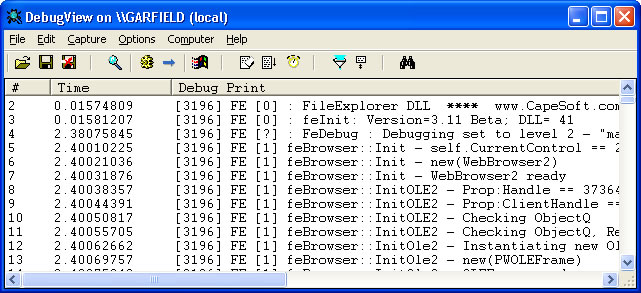
| MyApp.exe | same as MyApp.exe /fedebugoff |
| MyApp.exe /fedebugoff | almost no debug output |
| MyApp.exe /fedebugmin | minimum amount of debug output |
| MyApp.exe /fedebugmax | maximum amount of debug output |
Version 5.51 Gold (25 April 2013)